Dark and Light Mode in Starship Iterm and Neovim
The problem I am trying to solve
I keep several terminals open for different projects. I change the background colour of the terminal so that I can quickly tell which one I am looking at. Not all apps I use handle that well out of the box.
Starship
Starship is my prompt of choice. I like it because it’s fast and it has, by default, pretty much all the bits I previously had to add manually, but configured in a TOML file.
Here’s my current prompt
![My CLI prompt, showing dependabot/go_modules/modernc-8f2ccc5f6e via 🐹 v1.27.0
[ 15:34:05 ] ~/work/gotofritz/timbuktu](./starship.png)
The Issue with Starship
It doesn’t handle light / dark mode. You have one config file and that’s it. There’s an issue from a year ago (at the time of writing) which looks like will never be tackled.
iTerm2
iTerm (in reality iTerm2, but everyone calls it just iTerm) is my Terminal replacement. I don’t think it’s that great, to be honest, but it’s a big improvement on the standard Apple Terminal, and I don’t have the bandwidth to start experimenting with alternatives.
Color Schemes in iTerm
I checked out the iTerm2-Color-Schemes repo, and then imported all of them into iTerm, as per the instructions. The repo is great because it has screenshots of each individual scheme.
Per project profile
I understand iTerm can be set up to automatically switch profile depending on the current folder, but I haven’t got that far. Right now I have simply created a bunch of profiles named after the projects I work on, and when I want to work on project X I open profile X. Each profile has its own colour scheme. It works well enough.
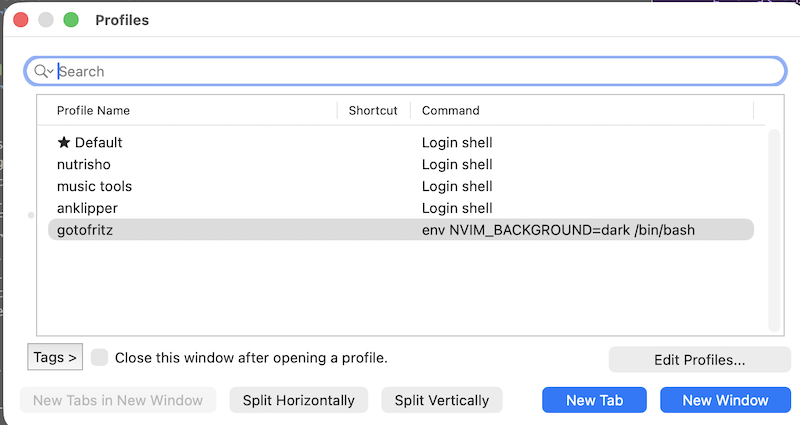
The issue with iTerm
It’s very configurable, but in a quirky, unintuitive, undocumented way which ends up wasting a lot of my time.
neovim
Since I started writing this post, there have been some bizarre goings-on in the neovim world, so I am actually writing the post with Helix. But until a few days ago I was using neovim with the solarized theme
The issue with neovim and solarized
Neovim with the solarized theme gets its cursor settings from the terminal. I used solarized light, which would fire off even on a dark terminal. This didn’t bother me too much, except that sometimes the dark cursor on the light theme became invisible because it had the same colour as the background.
Hack to have light and dark mode in Starship
The only way to have dark and light mode seems to be to have two config files. I took the original one I use, starship.toml, then fed it to Claude Code to turn it into something suitable for dark mode, fine-tuned it, and then saved it as starship-dark.toml. Now the trick is to switch config file depending on the profile.
Starship reads the env variable $STARSHIP_CONFIG to decide which config file to load. So it should be just a matter of overwriting that for a particular profile. It should be easy enough. But it isn’t in iTerm2; all it offers is very opaque and user-unfriendly approach which I have no intention to explore. But I found that the (undocumented) setting Send text at start can be used for bash commands. So I send export STARSHIP_CONFIG=/Users/fritz/Dropbox/_TRANSFER/starship-dark.toml && /opt/homebrew/bin/starship init bash which loads my settings from Dropbox (I keep them there because I use them at work too) and then reloads the profile. Not elegant, but functional.
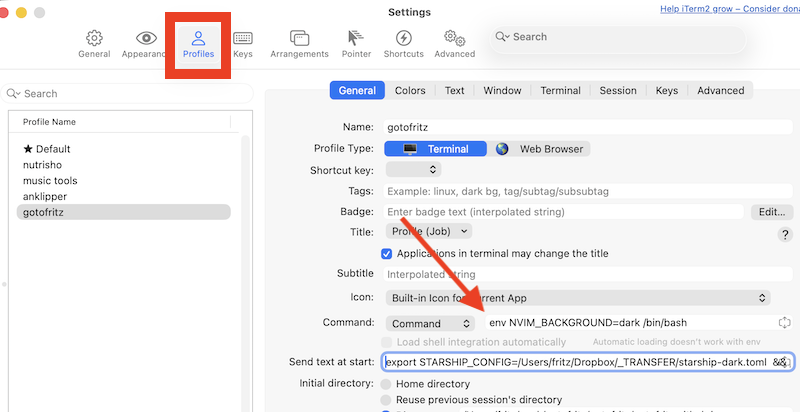
Hack to load neovim switch light / dark mode depending on iTerm profile
I do something similar for neovim. In this case I have to set an env variable using env and then restart bash, which I do by using a command and not the login shell, like for the other profiles. The command is env NVIM_BACKGROUND=dark /bin/bash. And no, it cannot be combined with the other variable setting, annoyingly.
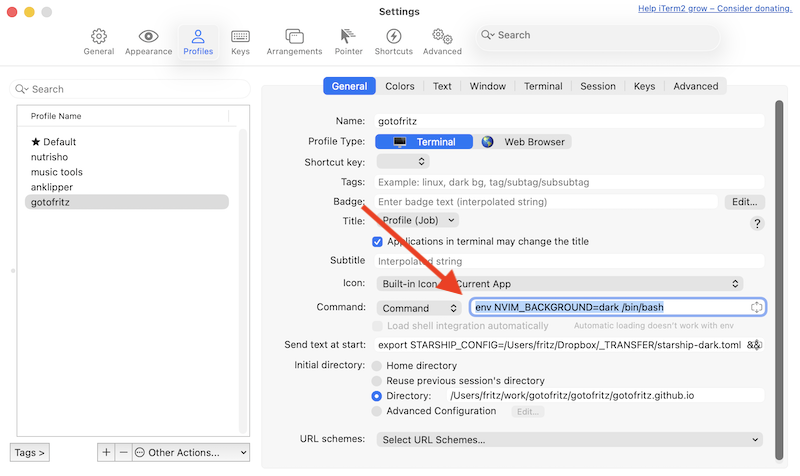
Finally I change the nvim solarised setting to use whatever is set in $NVIM_BACKGROUND or use “light” if not set:
❯ nvim ~/.config/nvim/init.lua

# inside init.lua
1. /backgro to find the line with background
2. change to  vim.o.background = vim.env.NVIM_BACKGROUND or 'light'
3. `:wq` to save
And with that I got what I needed.
Got thoughts on this post? Join the conversation on Mastodon!